

Group mailbox Applemail
The content on this page was translated automatically.
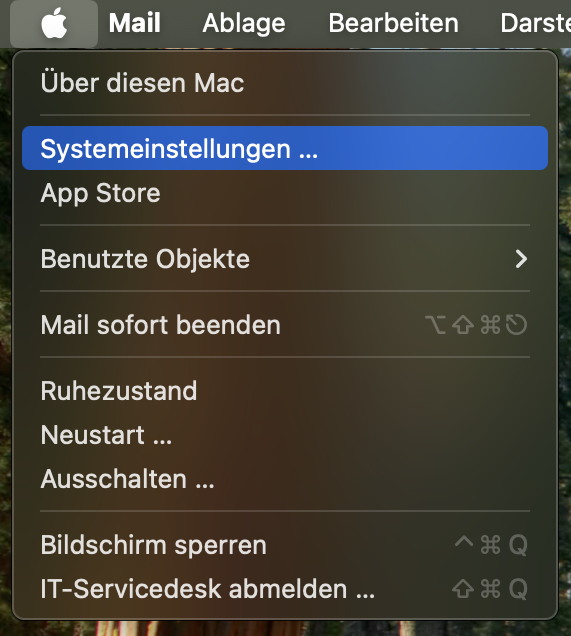
Please navigate to System Preferences by clicking the Apple icon in the menu bar and selecting "System Preferences."
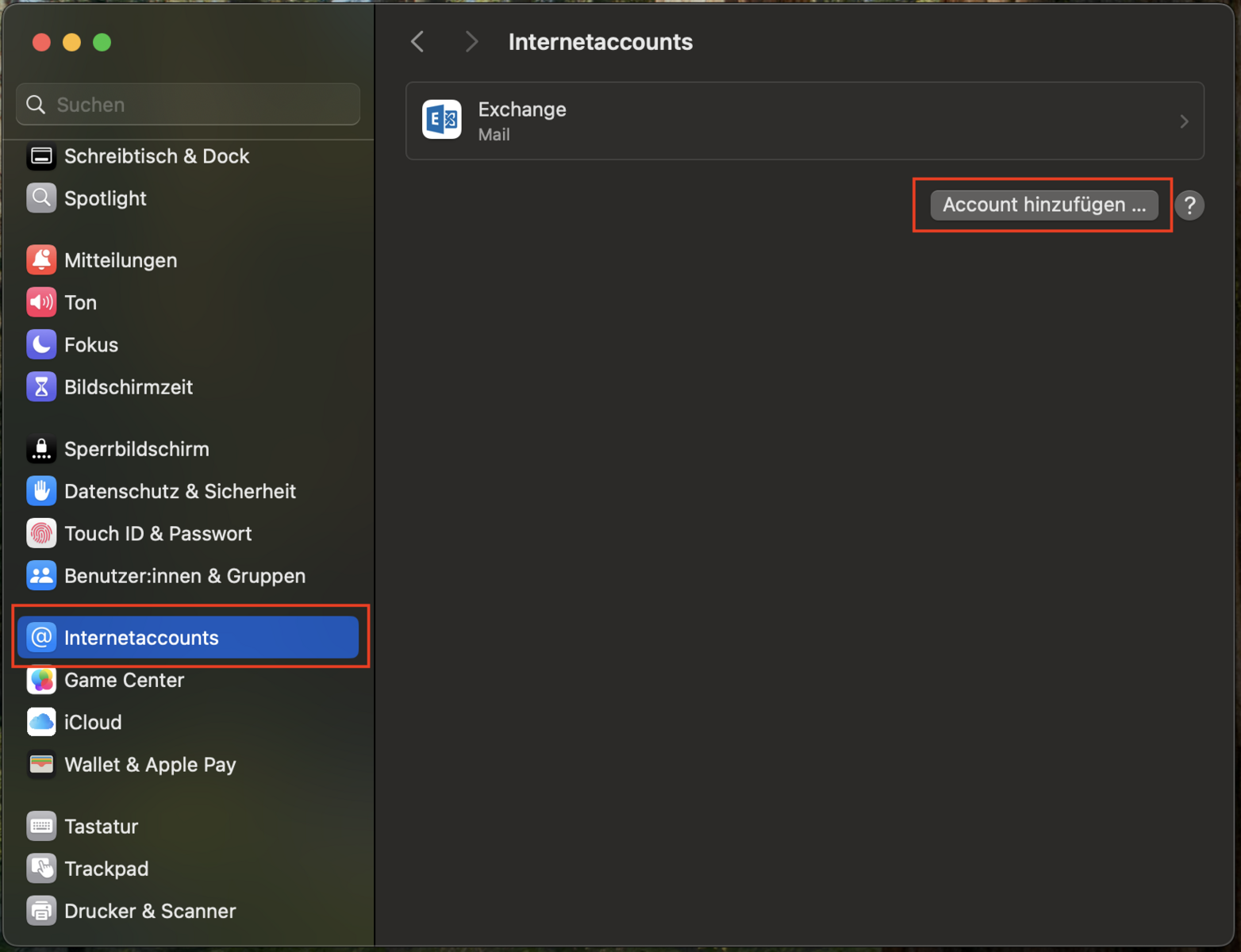
Scroll down in the left column and select "Internet Accounts." Then click "Add Account."
In the next window, select "Add Another Account" and then "Mail Account."

Now enter the name and preferred email address for the group mailbox. The password is the same as the one for your UniAccount. Confirm by clicking “Log In.”

The email address should have been carried over from the previous window. Please enter <IhrAccountname@uni-kassel.de/AccountnamedesGruppenpostfachs@uni-kassel.de> as your username. The password should also have been carried over. The server for both incoming and outgoing emails is “mail.uni-kassel.de.” Click “Log In” again.
If the message “Account name/password could not be verified” appears, please click “Continue.”

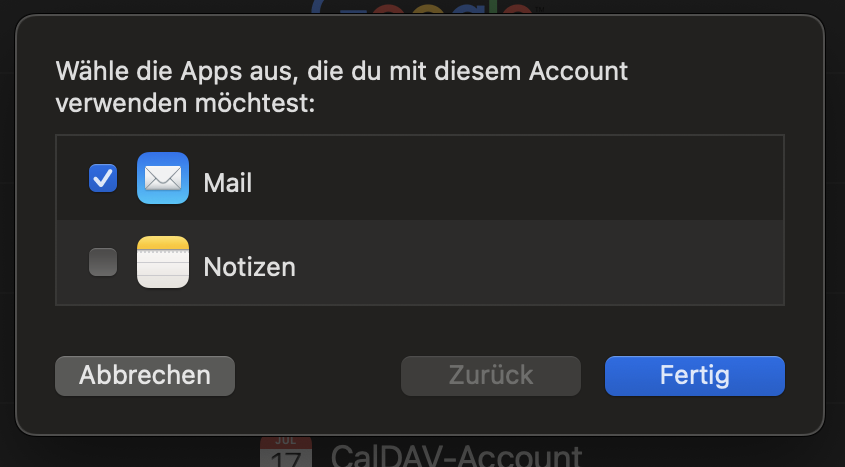
Now you can choose which apps you want to sync with this mailbox. Confirm your selection by clicking "Done."
Close the window and go to "Settings" in the Mail app.

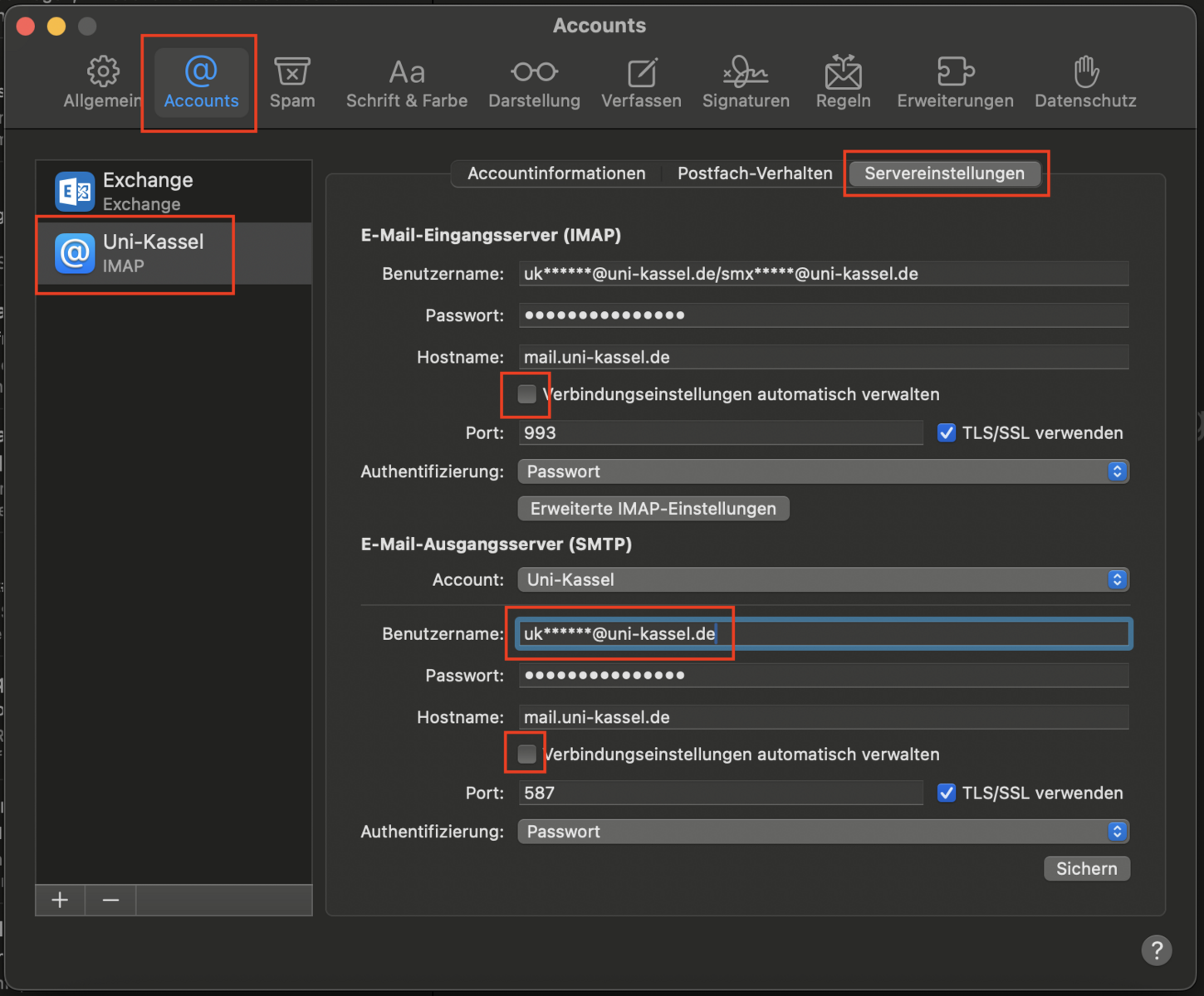
Select the “Accounts” tab, then select the appropriate mailbox in the left column. Click the “Server Settings” tab within that window.
For the outgoing server, enter only your username followed by the domain “@uni-kassel.de.”
Uncheck both boxes next to “Manage connection settings automatically”and verify that the remaining fields match those shown in the image.
Go-Link for this page: https://www.uni-kassel.de/go/applemail-gruppenpostfach