

Carousel
What can the Carousel do?
The gallery view offers you the option of presenting image material in an attractive slideshow. Image titles and subtitles can also be displayed. The number of dots filled in white below the image title corresponds to the number of images. The image display is controlled by forward and backward buttons. The title and subtitles can also be controlled by the image metadata.
Carousel - Application example
 Image: Presse Uni Kassel
Main entrance to the administration building
University administration at Mönchbergstraße 19
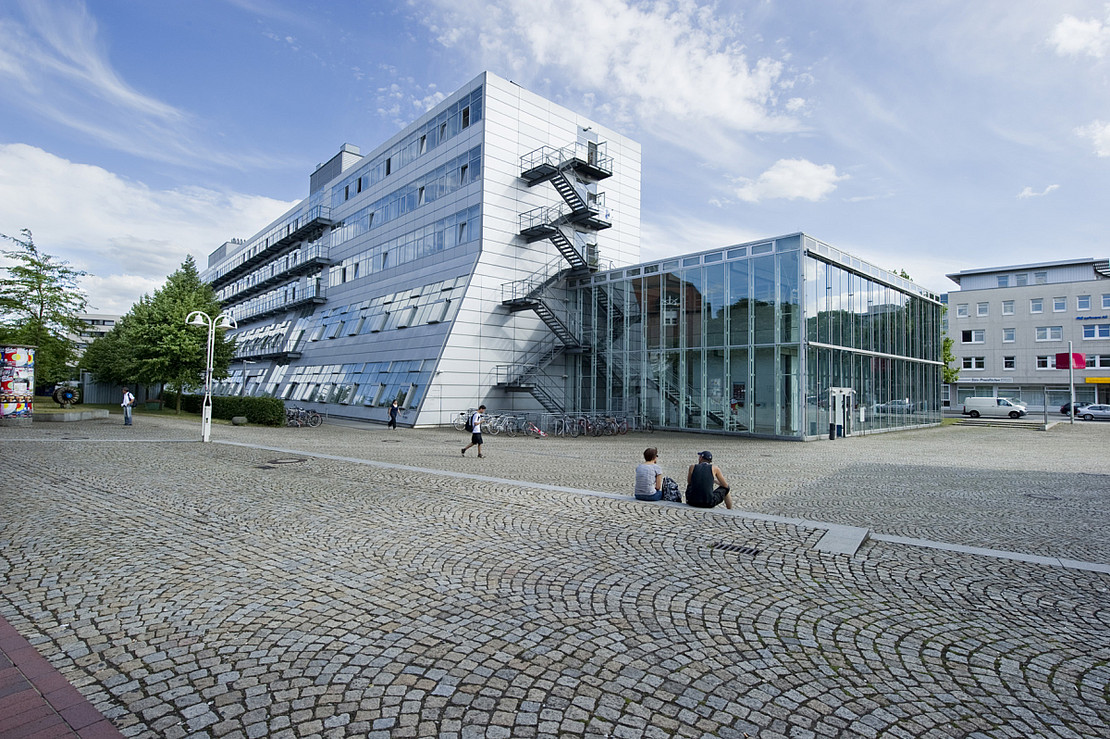 Image: Paavo Blafield
View of the "glass box"
Engineering Sciences at Kurt-Wolters-Str. 3
 Image: Fiona Koerner
View of the Campus Center
Campus Center - Lecture Hall Center, Moritzstr. 18

New content element with the type "Carousel"
- First select a new content element with the type "Carousel" using the + symbol.
- Assign a heading. You can also insert a link.
Add images
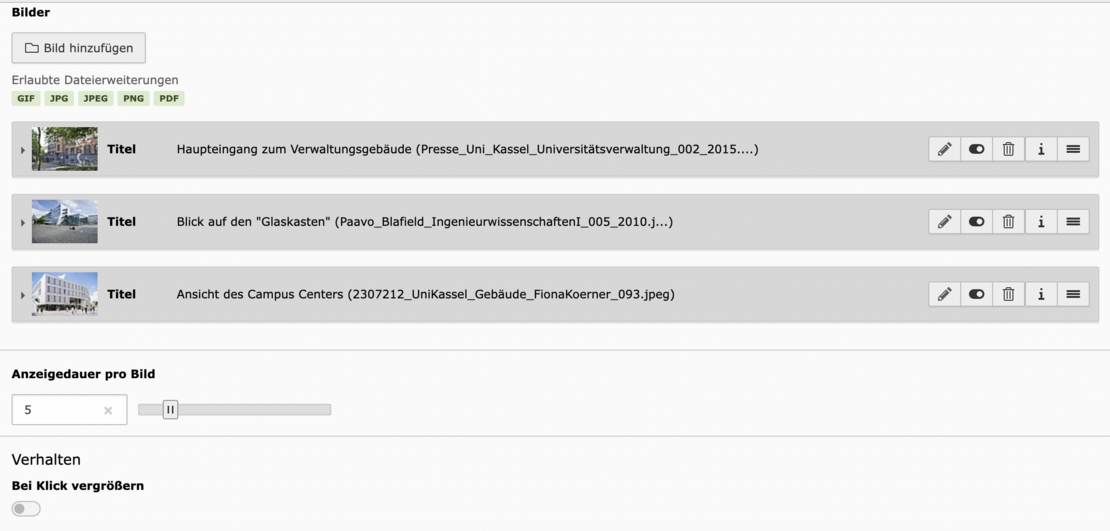
- You can now add several images via the second tab "Images" using drag and drop or the "Add media file" button.
- In this view, you can now edit, deactivate or delete images or change their order in the gallery. To do this, click on the symbol with the three vertical lines on the far right of the editing bar and, holding down the left mouse button, drag the individual image bar to the desired row position, then release.
- To be able to either edit or insert the metadata, click on the arrow in front of the thumbnail of the image to open the image properties and the image editor.
Edit image metadata

- You can overwrite existing data here by clicking on "element-specific value". You can now edit the image metadata such as title and description (caption).
- By default, these fields should already be filled in after uploading the file in Fileadmin. If not, complete them here. Note: It is mandatory to enter an alternative text and a caption.
The copyright can only be entered in the metadata of the image itself. Please note: Indication of copyright is mandatory!
Display duration of the images
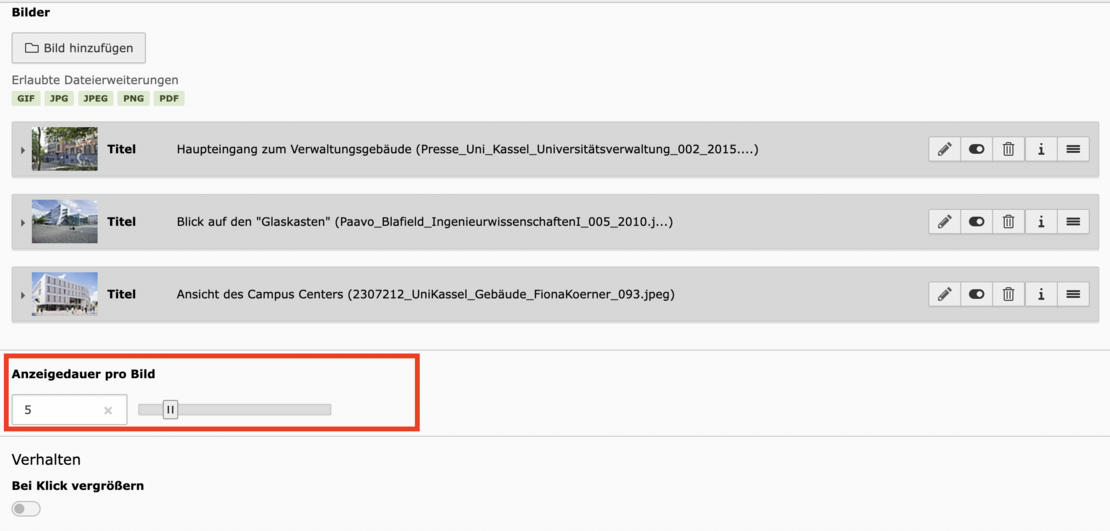
The display duration of the images can be set to a maximum of 30 seconds.
However, the minimum should not be less than 5 seconds !