Create rules
The content on this page was translated automatically.
Rules offer you the option of automatically tidying up your mailbox and placing various mails in designated folders when they arrive.
Contents
Outlook 2016
First click on "File" in the top left-hand area of the screen. Then select "Manage rules and notifications".

A window will now open. If you want to set the mail rule for a team mailbox, you can select it from the drop-down menu. Then click on the "New rule..." field.

You now have various options to choose from:
- Move messages to your own folder, delete the...
- ... come from certain senders
- ... contain a specific word
- For messages from a specific person...
- ... play a specific sound
- ... send a notification to a mobile device
You also have the option of creating your own rules for both sent and received mails.

In step 2, enter the required conditions depending on the rule selected.
Outlook 2024
To create rules, first click on "File" at the top left next to "Start". Then click on the "Manage rules and notifications" button.

A new window opens. Click on "New rule" under the "Email rules" tab. A new window will now open and you have various options to choose from. You can select rules based on a template:
- Move messages to a separate folder that...
- ...come from certain senders
- ...contain a specific word
- For messages from a specific person...
- ...play a specific sound
- ...send a notification to a mobile device
Or you can create your own rules (without a template). These can apply to both sent and received mails.


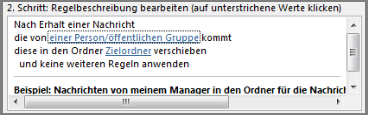
Once you have decided on a rule, the next step is to define the conditions for the rules. To do this, click on the words underlined in blue.
Finally, confirm the window.

Mac
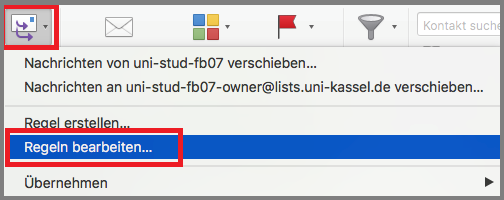
Click on the "Rules" button under the "Start" tab in Outlook.

Then select "Edit rules..." from the menu that opens.
In the following window you will see two categories of rules: Server rules and Client rules.
- The server rules are created via the Outlook program on the Exchange server and always work, even if Outlook is not running.
- The client rules only work when Outlook is running. We therefore recommend "Server rules" for automatic filtering and sorting of incoming mails.
- Click on the "+" to create new rules.

You can now create the rules in the following window.
- Enter a name for the rule at the top and define the conditions. Several conditions under "Execute the following" only apply if all conditions are fulfilled (AND-linked).
- You can also enter exceptions in "Except if".

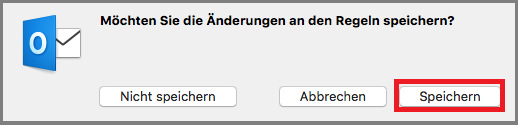
After you have closed the window, please save the process to complete it.