

Create signature
The content on this page was translated automatically.
Contents
Outlook 2016
To create a signature, open the "File" tab and select "Options" in the navigation bar that appears on the left.
Then go to the "E-mail" category in the Outlook options and click on the "Signatures" button in the "Compose messages" area.

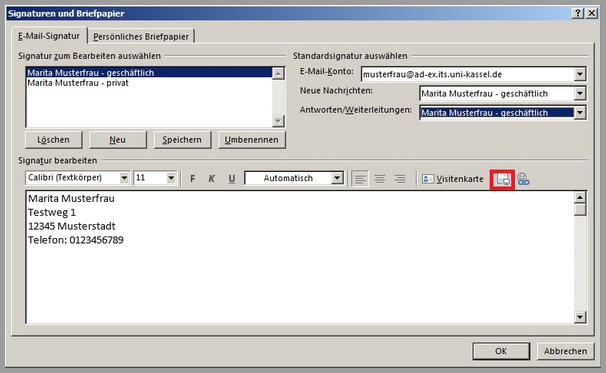
In the following dialog box, you can create a new signature in the "Email signature" tab using the "New" button. It is important to choose a unique name for the signature so that it can be easily identified later.

As soon as you have defined a suitable name for the signature, you can customize it in the lower section of the window and design it according to your wishes in terms of alignment, font size and font. You can also select a default signature for each email account, both for new messages and for replies and forwards.
To add a company logo to your signature, click on the area highlighted in red in the following illustration and select the logo from your computer.
Finally, confirm with "OK" to save the signature.
When composing an e-mail, you can select a different signature via the "Message" tab and a click on the "Signature" button, regardless of the default signature selected.

Outlook 2024
To create a new signature, click on "File" in the top left-hand corner of Outlook. Then select "Options" in the navigation bar at the bottom left.

A window with the title "Outlook options" opens. Click on the "E-mail" category and in the "Compose messages" area click on the "Signatures" button.

In the window that now opens, you are in the "Email signature" tab. You can create a new signature using the "New" button. Please choose a unique name so that you can be identified more easily later.

Once you have defined a suitable name for the signature, you can customize it in the lower window area and design it according to your wishes. You can select the text alignment and type as well as the font size and type. You can also select a default signature for each email account, both for new messages and for replies and forwards.
If you would like to add a company logo to your signature, click on the button with the computer symbol above the text field (marked red in the adjacent image). Select the logo from your computer.
When you have finished editing your signature, click on "OK" to save it.

When composing a new e-mail, you can then select a signature (regardless of the selected default signature) by clicking on the "Signature" button on the "Message" tab.

Mac
Click on "Outlook" in the top menu bar and then on "Settings...".

Then click on "Signatures".

You can now create several signatures in the "Signature name" section. In the "Signature" section, you can design the respective content of the signature.
In the "Select default signature" section, you can specify which signature is assigned to which email account.

Go-Link to this page: https://www.uni-kassel.de/go/outlook-signatur