

Outlook setup on UniKasselClients (UKC's)
The content on this page was translated automatically.
Contents
All University of Kassel clients (UKCs) are affixed with a label carefully applied by the IT Service Center. This label contains important information such as the model number, device name, MAC address, purchase date, and warranty expiration date. This information makes it easier to identify the device and allows for quick access to relevant details, especially when submitting support requests. For more information, visit UniKasselClient.
If you have a UKC with Windows 11, Outlook 2024 is installed on your device. If you still have a UKC with Windows 10, Outlook 2016 is installed. The initial setup of both versions is simplified by the use of group policies.
Outlook 2024
Initial setup
Start Outlook 2024 on your UKC.
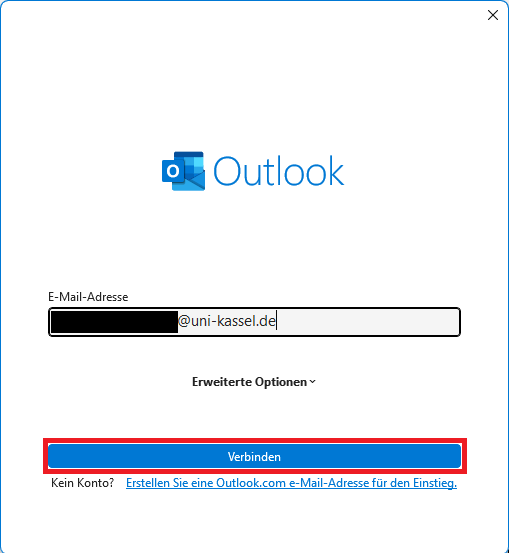
A window will open. Your university email address should already be entered here.
Click on "Connect".
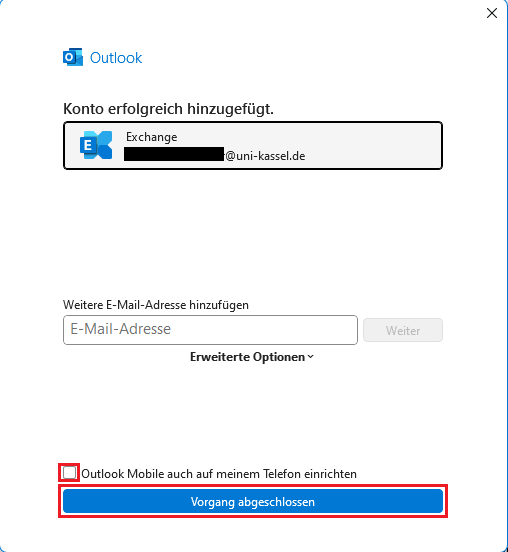
A message will appear in the following window stating that your account has been successfully added. Further down in the window, you can add another mailbox if necessary (for example from a secondary account or a group mailbox).
Please uncheck the box "Set up Outlook Mobile on my phone too". The Outlook app for the smartphone is no longer supported for the university email mailbox.
Click on "Process completed" to finish.
Please restart Outlook now. Your mailbox will now be synchronized. This process may take a few minutes.
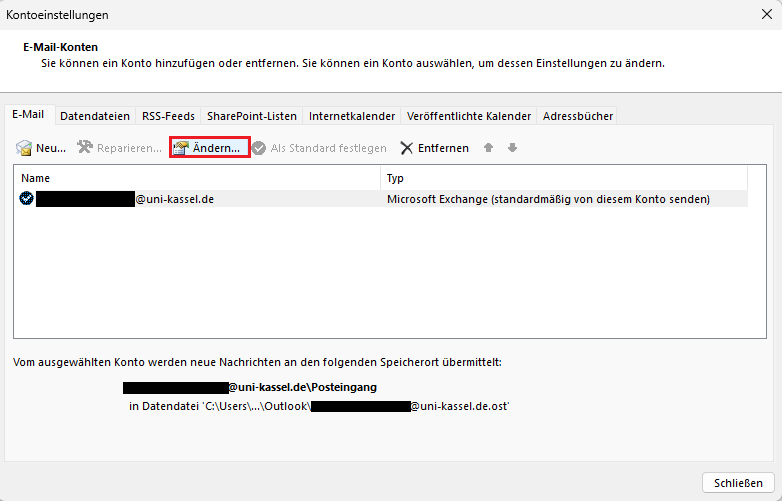
A window opens with the Outlook account settings. Select your account so that it is highlighted in blue and click on "Change...".
Adding further accounts
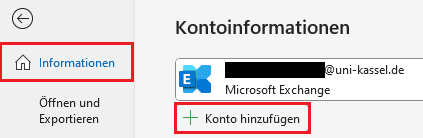
To add further accounts, click on "File" and then on "Add account".
A new window opens in which you enter the e-mail address of the mailbox that you would like to add. Then click on "Connect".
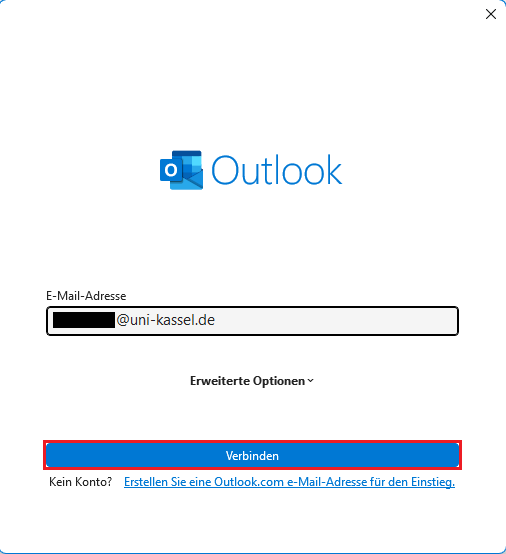
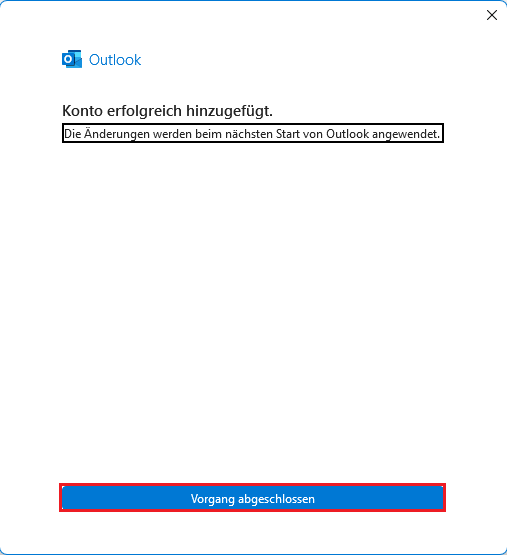
The following window will show you that the account has been successfully added. Please click on "Process completed" and restart Outlook.
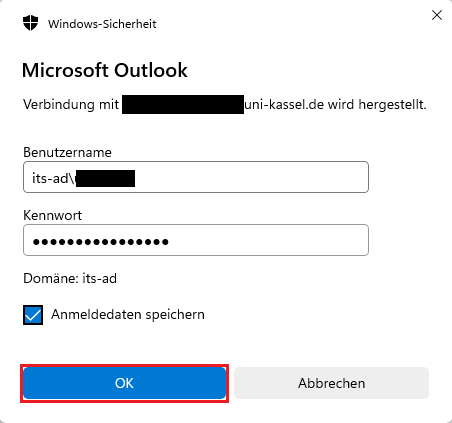
If this is a secondary account, a corresponding login window will appear.
Enter <its-ad\> followed by the name of the secondary account in the "User name" field and the corresponding password in the "Password" field.
If it is a group mailbox, the login window does not appear as long as you have the corresponding authorization for the group mailbox.
After successful login, Outlook will synchronize the mailbox. This process may take a few minutes.
Go-Link of this page: https://www.uni-kassel.de/go/ukc-outlook