

Password manager
You need to manage a large number of different passwords for your online activities. Read here how password managers can help you with this task.
“A separate password for each service” is an important rule when it comes to passwords. The reason for this is that data leaks from service providers occur time and again, resulting in passwords being tapped and passed on on the darknet. If a compromised password has been used several times, an attacker has access to all accounts that were protected with this password.
“Choose a strong password!” is another rule. The longer and more complex the better. Passwords should also be chosen randomly if possible.
And how can you remember all those complex passwords? Password managers are helpful - not only for “remembering”, but also for creating secure passwords.
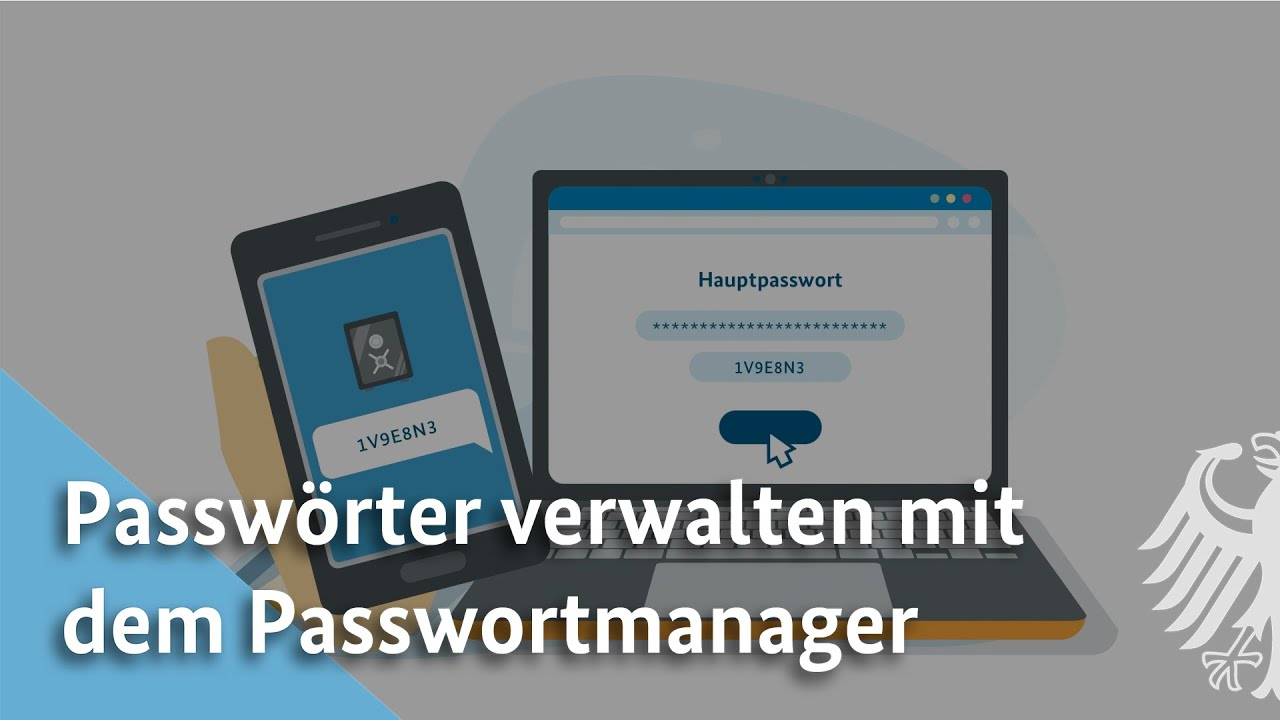
What password managers do
- They offer an easy way to create secure passwords using integrated password generators.
- They store a virtually unlimited number of secure passwords in a secure password database.
- Integrated auto-fill functions allow user names and password fields to be filled in automatically. The time-consuming and error-prone typing of long passwords is no longer necessary.
- They provide indirect protection against phishing: If you store the websites of the services you use in the password manager, you can use it to access the authentic login pages directly without accidentally ending up on a phishing page.
You only need to remember a single secure password: The password for securing the password database.
Choose a password manager with a local database
There are many password managers. Although cloud-based services offer simple synchronization between all your devices, they have one serious disadvantage: you entrust all your sensitive access data to the password manager provider and the use of such password managers is generally not compliant with data protection regulations. Bitwarden's password manager is an exception here.
We therefore only recommend the use of password managers with a local password database. A very good choice is KeePass. There is a whole ecosystem of tools that are all compatible with the KeePass database format, making your passwords usable on all your devices. You can also choose another of the compatible password managers at any time and switch from KeePass to KeePassXC, for example.
Recommended:
If you cannot or are not allowed to install any software for any reason, you can also use the password manager in your Firefox browser as an alternative. You will find step-by-step instructions below this section.
To use Firefox's integrated password manager, please proceed as follows:
- Öffnen Sie die Einstellung über das Burger-Menü (≡) in der oberen rechten Ecke von Firefox
- Switch to the “Data protection & security” menu
- Search for the category “Passwords”
- Check the “Use main password” box
- Assign a very strong password and remember it well
You have now encrypted the password manager and prevented unauthorized access.
With the button “Saved passwords” you will find an overview of all saved passwords under Firefox. Please ensure that you make regular backups of your system or Firefox so that you can restore the password manager in Firefox if your hard disk fails.
Tip: To make it easier for you to access your saved passwords, simply bookmark this page in your bookmarks bar.
The Chrome browser automatically encrypts locally on the hard disk with your user data from the Windows login. However, the Chrome browser does not offer any further security prompt before the passwords can be accessed, so you should always lock your client when you are away to prevent unauthorized access.
To access Chrome's integrated password manager, please proceed as follows:
- Open the setting via the dots menu (⋮) in the top right-hand corner of Chrome
- Then select “Autofill and passwords” in the left-hand menu
- In the tab under “Google Password Manager” you can access all your saved passwords
Please make sure you make regular backups of your system or Chrome so that you can restore your wallet in Chrome if your hard disk fails.
Tip: To make it easier for you to access your saved passwords, simply bookmark this page in your bookmarks bar.