

Password security
You use passwords every day, whether for your university account, to use central IT services at the University of Kassel, to unlock smartphones or as a login for e-commerce platforms or social media channels. Anyone who knows your access data can misuse it and, for example, read your emails or make purchases at your expense. Therefore, choose secure passwords and keep them secret.
What does a secure password look like? And how do you remember a good password? We have summarized the most important tips for you below. Please refer to the password guidelines of the University of Kassel for further details on how to handle passwords securely.
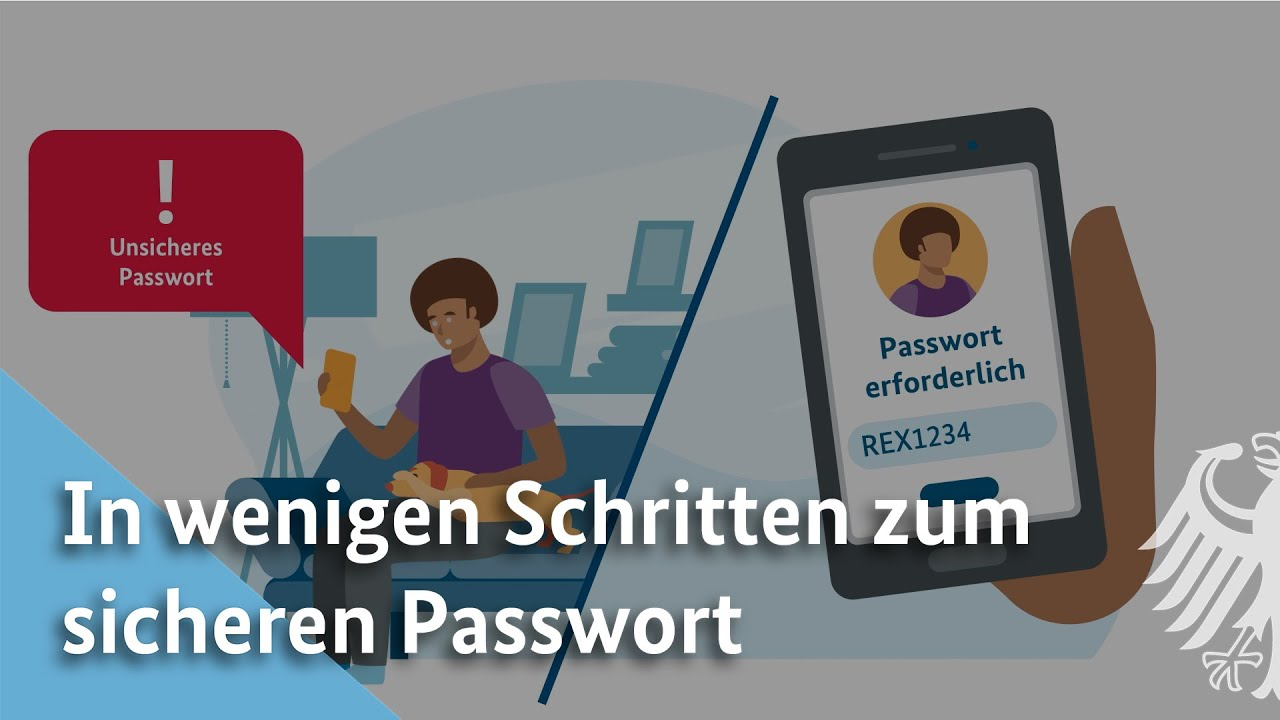
Secure passwords | BSI
Forgotten your university account password?
You can reset your university account password yourself at any time via the University of Kassel's self-service. All you need is your cell phone number.
Further information and instructions for setting up self-service can be found here.
At a glance
A secure password...
- has at least 12 characters (20 for administrative accounts). Basically, the longer the better!
- contains upper and lower case letters, numbers and special characters (?!%+...).
- does not contain any personal data such as the name of a family member, your own pet, etc.
- does not appear in the dictionary.
- is not a simple password with a single digit or one of the usual special characters ($, !, ?, #) at the beginning or end of the word.
But how do you remember such a password?
A popular method works like this: Think of a sentence and use only the 1st letter of each word (or only the 2nd or last etc.). Then turn certain letters into numbers or special characters.
An example: “I get up early in the morning and brush my teeth for three minutes.” Only the first letters: “Igueitmabmtftm”. “i” looks like “1”, “&” replaces the ‘and’ and also ‘for‘ can replaced with “4“: “Igue1tm&bmt4Tm”.
Of course, there are many other tricks and methods that work just as well.
You can find detailed information on this on the website of the Federal Office for Information Security (BSI). Learn more
Tip: Use a password manager
If you choose a separate, secure password for each service, you have a lot to remember. Password managers help you remember and create secure passwords.
Further tips for dealing with passwords
Even if it is difficult with rarely used access data - you should never write down passwords.
Also read the BSI's recommendation: How password managers protect data.
The habit of using standardized passwords for many different accesses (accounts) is problematic. If the password falls into the wrong hands, attackers have access to many applications. They only need to automatically test where the password is still being used. This could be the mailbox or all information on the PC, for example.
With many software products, empty passwords or generally known passwords are used in the accounts during installation (or in the delivery state). Hackers know this: in the event of an attack, they first check whether new passwords have been forgotten for these accounts. It is therefore advisable to check the manuals to see whether such accounts exist and, if so, to secure them with individual passwords.
With the most common operating systems, you have the option of locking the keyboard and screen after a certain waiting time. They are only unlocked after a correct password has been entered. Make use of this option! Without password protection, unauthorized third parties can gain access to your PC if you are temporarily absent. Our recommendation: 5 minutes after the last user input. It is also possible to activate the lock immediately if necessary (e.g. for Windows operating systems: press “WINDOWS key + L”).
You should change a password if there is any suspicion that it has fallen into the wrong hands. This is the case, for example, if the passwords of a service provider you use have been stolen. A spam or phishing e-mail containing your personal data can also mean that someone has accessed data from one of your accounts.
If you discover that your device is infected with a malicious program, change your password too - but only after cleaning the device. Some malware programs record access data and transmit it to third parties.
If you suspect that the password to your university account has fallen into the wrong hands or that your device has been infected with malware, please contact us using this form.
Leak-Checker
Leak checkers are online tools or software applications designed to check whether personal information such as email addresses, passwords, credit card numbers or other sensitive information has been exposed in data leaks or databases by cybercriminals. These tools search through a number of databases and records that come from various data breaches to see if a user's information has been compromised.
Recommended are:
*The recommended leak checkers are GDPR-compliant
Sources
Go-Link of this page: https://www.uni-kassel.de/go/secure-password