

Text & Media
The "Text & Media" content element is used to present editorial content in a structured way—usually in the form of continuous text accompanied by media elements such as images or videos.
Example: Today for tomorrow
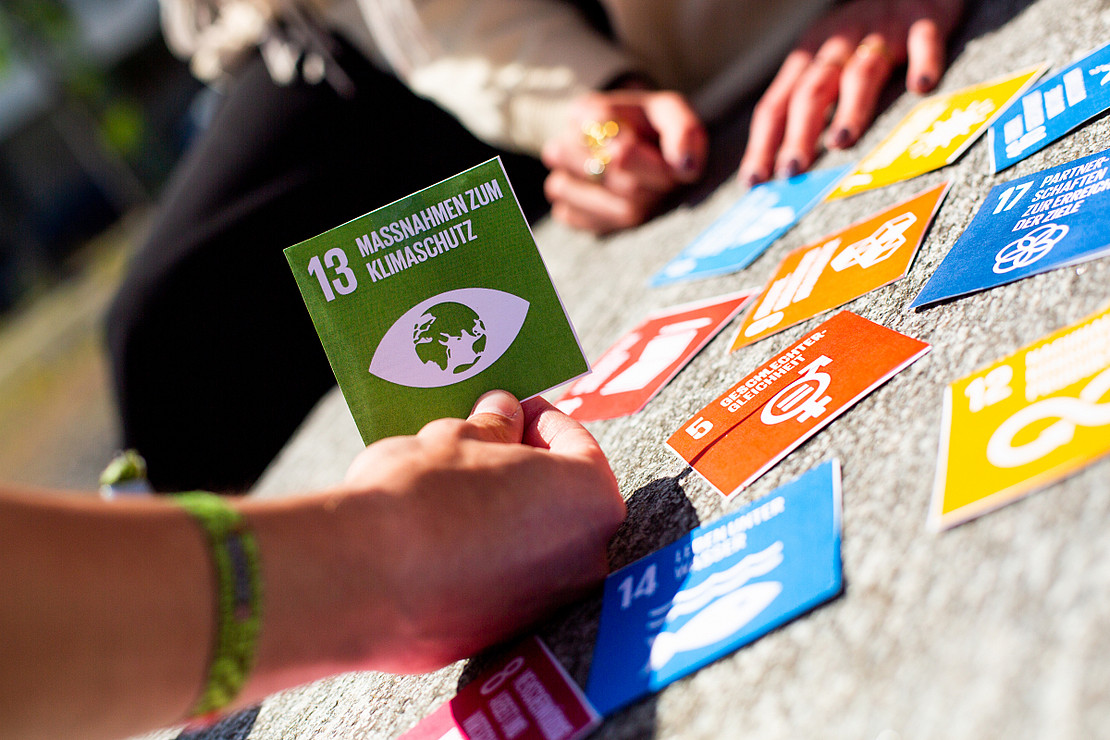 Image: Sonja Rode
Our motto is more relevant than ever. The University of Kassel is committed to sustainability in research, teaching, and knowledge transfer. We take responsibility and foster new perspectives for a future worth living.
Step-by-Step Instructions
Step-by-Step Guide
Step-by-step explanation
- Open the desired page in the TYPO3 backend.
- Go to the page view and click on the plus symbol in the content area.
- Select the appropriate "Text&Media" element from the "Typical page content" drop-down menu.
- Assign a heading. You can format the heading accordingly under "Type", e.g. set it to hidden. If you only want a heading, select the "Heading" content element.
- You can format the text in the editor (see description below).
- Media tab: Add images or videos (see description below).
- Save your changes and check the result in the frontend.
Optional:
- Access tab: You can control the visibility (e.g. publication period).
Use text & media
The so-called rich text editor (RTE for short) offers a convenient way to visually design texts on websites and is based on the widespread Office programs in terms of operation and interface.
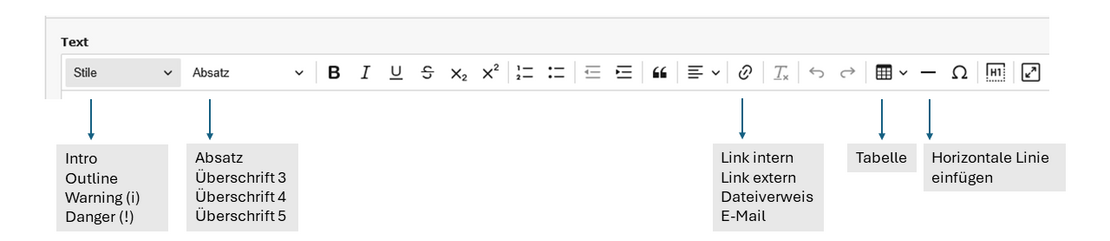
The most frequently used elements of the rich text editor are
- Block style: Style in which the paragraph is to be displayed (selection via the "Style" field). To do this, select the relevant part and select the style. If the style is to be removed, select it again and select the style a second time - this will reset it to "normal".
Intro text: Is used for a short description or an introductory sentence to make it easier to find in search engines.
Info text/warning: This can be used to emphasize information.
- Buttons: If a link is to be emphasized, it can also be displayed as a button. For example like this
- Format: Display the current paragraph as a heading (h3 - h5) or standard (Normal).
- Display the text in bold, italics, underlined or strikethrough.
- Left-justify, center, right-justify or block-justify the text.
- Insertnumbering or bullet points.
- Chain symbol: Display selected text as a link (internal, external, file references) or email.
- Table symbol: Insert a table with the desired columns and rows.
- Insert a horizontal line.
Buttons: If you want to highlight a link, you can also display it as a button. For example, like this
- To create a button:
Select the text, then insert the link, and finally select Styles > Text Styles to apply the style.
To change or remove the button style: Select Text Styles again to deselect
it. To edit or delete the link: Double-click the button, then use the pencil icon to edit or delete the link. - Step-by-Step Instructions

Image and graphic formats (PDF, GIF, JPG, BMP and many more) as well as audio or audiovisual formats (WAV, MP3, MP4,...) are integrated in TYPO3 via the "Text & Media" content element (here the second tab "Media").
Media selection
- Images that have already been entered in the TYPO3 file system can be selected here(information on file management in TYPO3). These media can be selected using the "Add media file" button. To do this, search for the corresponding photo folder in Fileadmin and select and save the desired file by clicking on it.
- In the gallery settings, align the file so that it is placed either above (top left) or below (bottom left) a text.
Photos must be large enough for responsive use. Image size 1920x1080 (4.3 or 16:9 format), but at least: > 1,111p wide
Image metadata
- File name should contain keyword: Word_Word_Word.jpg
- It is essential to enter the metadata "Title", "Alternative text" and a "Description" in the file list. These are mandatory requirements.
- If you want to display the picture credits vertically at the top right of the picture, you must enter them in the Metadata/Copyright tab.
- Please note: If you edit the image metadata directly in the Text&Media element, it will only be visible on the page in question. If, for example, you always want to include an info text with the image, use the file list.
Image editing
You can crop the image you have selected using the "Editor"
A well-structured text increases readability and looks professional. Observe the following basic rules:
- Use H2 and H3 level headings to organize content on the page, also use subheadings in the text sections (H3 and H4).
- Use the "Intro" style to emphasize introductory sections.
- Write short, comprehensible paragraphs. For longer text sections, shorten texts and, if possible, only deal with one main topic per page. Choose a maximum of three to five thematic text sections.
- Pay attention to correct links (internal and external links) and descriptive link texts (e.g. "to the student advisory service" instead of "click here").
- Headings are important, possibly hidden: They are used to create page-internal jump labels and for better backend organization, especially in the list view.
- Format enumerations as a list.
- Tables are only inserted via the text editor.
- Texts can only be expanded if they are in an accordion.
Compliance with accessibility standards and data protection guidelines is mandatory:
So check:
- Are all images provided with alternative text?
- Are all links formulated in an understandable way?
- Is the text understandable even without media?
- Is the copyright registered?