

Phishing protection
Criminals send fake messages by e-mail and scatter false links in order to obtain access data and other confidential information. This process is known as phishing, i.e. “fishing for data”. The e-mails are increasingly cleverly adapted to original messages from mail order companies, the university or the ITS, for example. But if you look closely, you can spot the fakes.
Recognize phishing in 7 steps
The following steps will help you to easily detect phishing. If you recognize during one of the steps that it is phishing, do not carry out the following steps, but report the email directly to Report IT security incident.
Make it a routine to ask each other about emails:
- Is the message unexpected?
- Does the sender not match the message?
- Is the salutation incorrect or does it not match the sender?
- Are sensitive data requested, such as date of birth, a password, PIN or TAN?
- Are you being asked to act quickly to prevent data loss, for example?
- Are you being asked to transfer money or call someone, with the message giving the necessary information?
- Do you not have a user account with the supposed sender?
The more questions you can answer with “yes”, the more likely it is to be a fraudulent message.
Special care is required with sensitive data such as passwords. University of Kassel departments, including the information security officer, admins or ITS, would not ask you to send your password.
By the way: You can also apply most of the above questions to the telephone, fax or letter post context. Phishing can also occur here.
If the message contains a link, check where the link takes you, i.e. which web address - also known as the URL - is actually behind the link, without opening the link.
A link can usually be recognized by the fact that the text is blue and underlined. However, links can also be integrated into messages in the form of buttons or images.
On PCs and laptops, the web addresses usually appear when you move the mouse over the link (and “touch” it with the pointer, so to speak) without clicking on it. The link will either appear in the status bar or in an info field (also known as a tooltip).
On mobile devices (smartphones and tablets), the procedure for identifying the web address of a link depends heavily on the device and the respective app. In most cases, if you hold your finger on the link for at least two seconds, the web address will be displayed in the dialog box. Make sure that you do not accidentally click on the link. If you are unsure, wait until you are back at your PC or laptop.
It is best to test this procedure on an email that is definitely not phishing in order to familiarize yourself with how you identify the web address on which device.
Once you have discovered the real web address, identify the who section in the web address.
The who section of a web address consists of the two terms separated by a dot and located before the first single slash “/” (see image). The who area is the most important area, i.e. the most important indicator for recognizing dangerous web addresses and therefore messages with dangerous links. In technical jargon, it is called the “domain”. If there are numbers here, it is a so-called IP address and it is most likely a dangerous web address.
Example of a fake web address: 123.45.67.8/uni-kassel.de or www.uni-kasse1.de
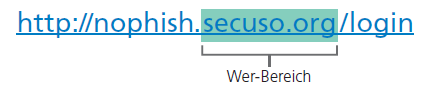
If you have identified the “who” section in the web address, check whether the “who” section is related to the (supposed) sender and the content of the message and whether it is spelled correctly. If the sender or subject do not match the content, do not click on the link. It is very likely to be a fraudulent message.
Caution! Sometimes links are used in phishing emails that resemble the original and are perceived as correct on a cursory reading, for example www.uni-kasse1.de instead of www.uni-kassel.de.
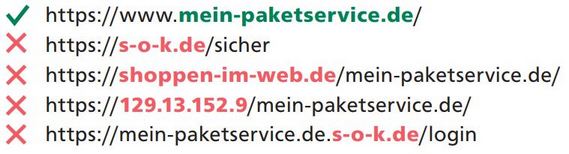
If you cannot clearly assess the who area, you should obtain further information, e.g. using a search engine.
If the sender and content of a message appear plausible and the message contains an attachment, check whether this attachment has a potentially (very) dangerous file format. Potentially dangerous file formats are:
- directly executable file formats (very dangerous), e.g. .exe, .bat, .com, .cmd, .scr, .pif
- File formats that may contain macros, e.g. Microsoft Office files such as .doc, .docx, .docm, .ppt, .pptx, .xls, .xlsx
- File formats that you do not know
If the file format is potentially (very) dangerous, only open the attachment if you expect the same from the sender.
If you are unsure whether you can simply delete the message, you should obtain further information. Do not under any circumstances use the contact options in the message. Call the sender, for example.
If you are asked in Office programs after opening whether so-called macros should be executed, this is a good time to reconsider whether the message from which the file originates is not a fraudulent message after all. Cancel the process first. Contact the (supposed) sender using the contact details you know or have researched. Never use the contact details given in the e-mail.
Video instead of text?
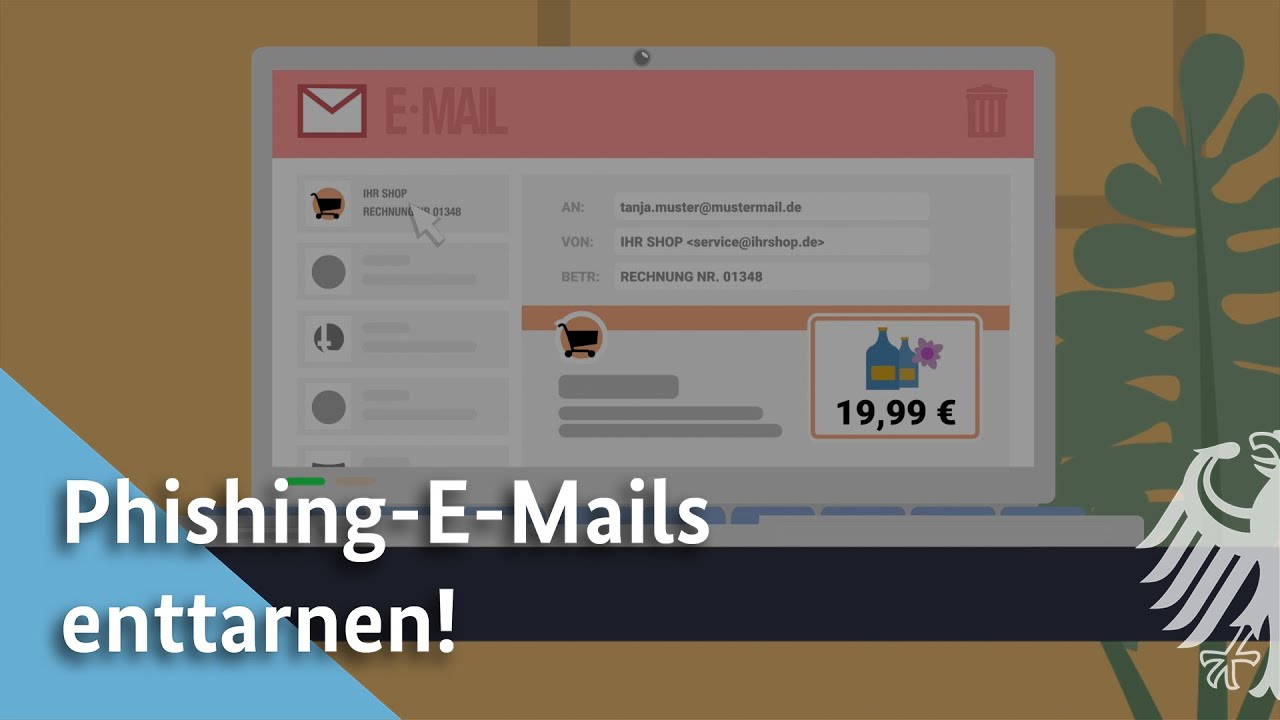
Detect phishing e-mails! | BSI (German audio)
General security measures
- Use an up-to-date virus protection program. Employees of the University of Kassel can use the Sophos software free of charge. More information
- Only update your passwords in Identity Management via the official pages of the University of Kassel
- Check the security status of websites where you enter personal information. Make sure that the URL begins with “https”. On secure sites that transmit data in encrypted form, a lock will also appear in front of the URL in the address bar of the browser. Details on this can be found on the web pages on encryption and certificates of the Federal Office for Information Security (BSI).
- Further information and tips: Detailed information and other valuable tips on information security can also be found on the BSI for Consumers website of the German Federal Office for Information Security (BSI).
Sources
Go-Link of this page: https://www.uni-kassel.de/go/phishing-protection