Request access
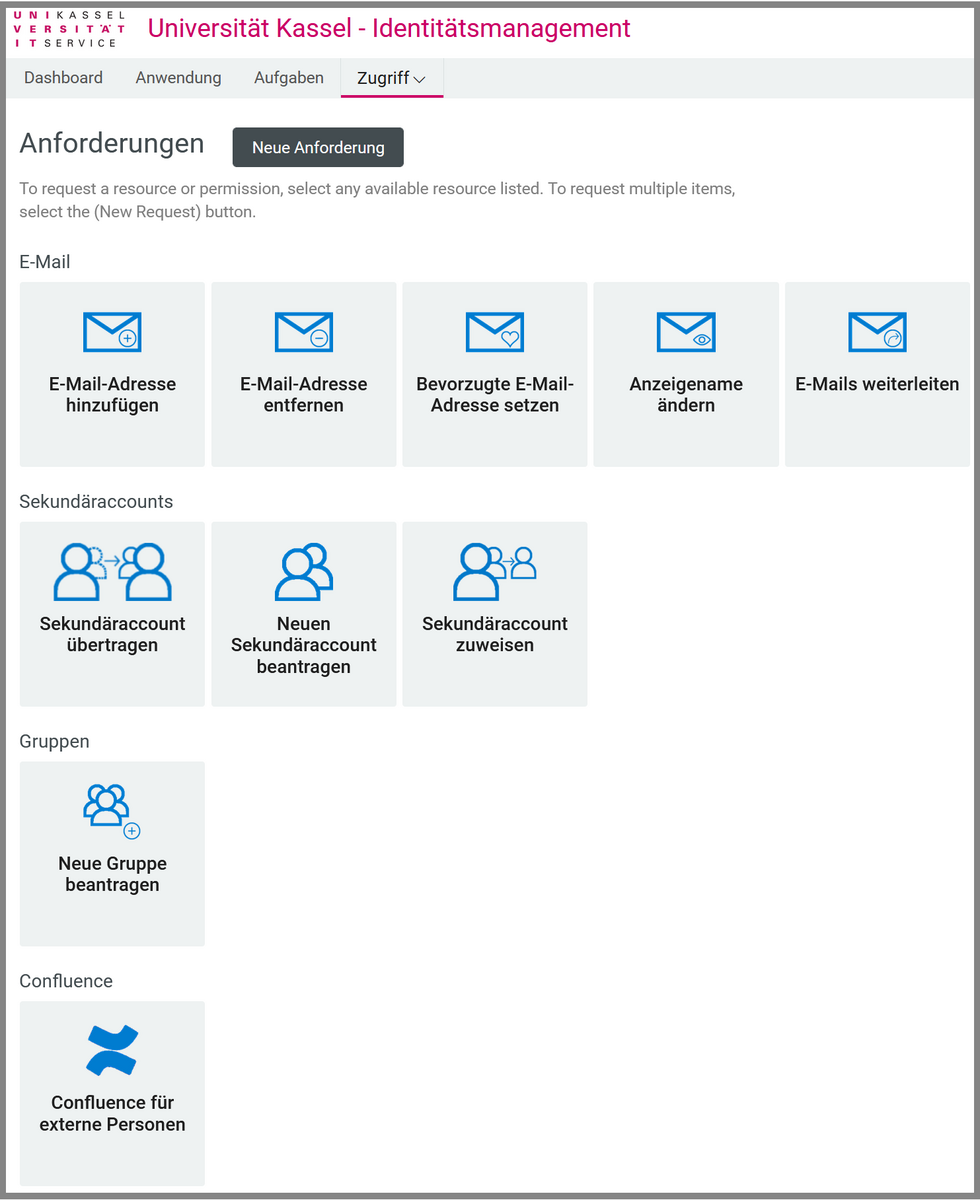
Clicking on "Request access" takes you to the "Requirements" category. This is divided into several subcategories.
Please note that some of the categories are only visible to employees (not HiWis).
If nothing happens after clicking on a tile, your web browser is probably blocking the pop-up window that was supposed to open. Please make sure that your web browser allows the opening of pop-up windows for userapp.its.uni-kassel.de.
In Mozilla Firefox, for example, you will see a message and an option to allow the pop-up window directly below the address bar.
Here you can manage various settings relating to the e-mail address of your UniAccount.
Students can use the "Forward emails" function to forward emails from their student email address to a private email address. Please note that forwarding work emails to external email addresses is not permitted.
A detailed explanation of the individual functions can be found under e-mail address and mailbox.
This tab only contains elements if you are logged in with an employee account. The "Transfer/assign secondary account" elements are only displayed if you already administer a secondary account with your primary account.
You can find a detailed explanation of the individual functions under Secondary accounts.
Here you can request groups and manage approved groups. These groups can be used for joint work on a group network drive (share/Samba drive) or for managing an SVN repository.
The "Manage groups" tile is only displayed if you already manage at least one group with the logged-in primary account.
A detailed explanation of the individual functions can be found under Groups.
This tab only contains elements if you are logged in with an employee account. The "Manage Confluence accounts" tile is only displayed if you already administer at least one Confluence account for external persons with your primary account and this has already been activated.
You can find a detailed explanation of the individual functions under Confluence accounts for external persons.
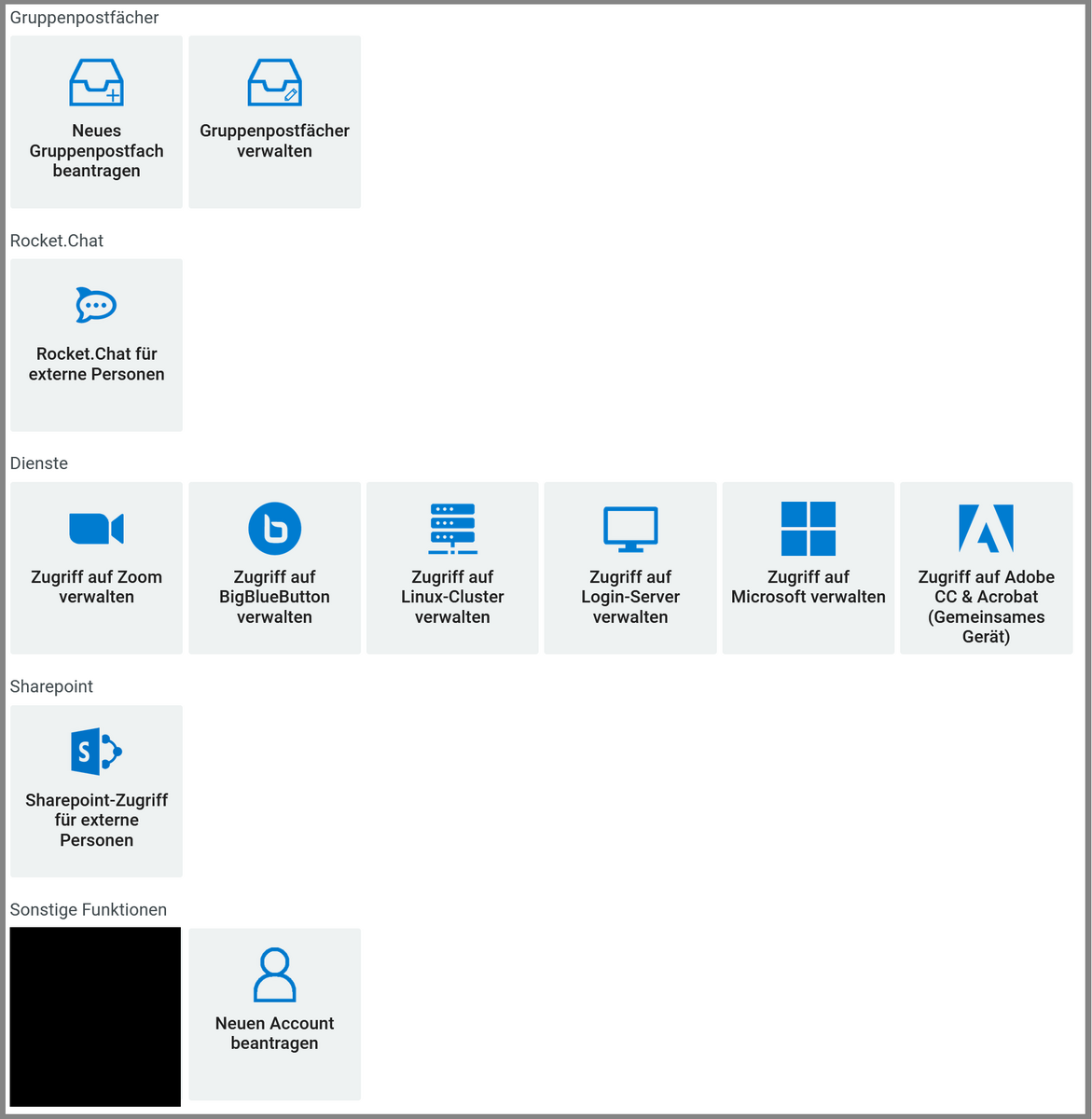
This tab only contains elements if you are logged in with an employee account.
Group mailboxes are intended to give several people full access to a mailbox, whereby the administrator of the mailbox can easily add new users/remove old users via the IDM.
Secondary accounts should not be used as a replacement for group mailboxes, as the sharing of account passwords is not permitted under the IT user regulations.
A detailed explanation of the individual functions can be found under Group mailboxes.
This tab only contains elements if you are logged in with an employee account. The "Manage Rocket.chat accounts" tile is only displayed if you already administer at least one Rocket.chat account for external persons with your primary account and this has already been activated.
You can find a detailed explanation of the individual functions under Rocket.Chat accounts for external persons.
Here you can activate access to various services for your UniAccount.
The "Manage access to BigBluebutton" tile is only displayed if you are logged in with an employee account.
If you are logged in with an employee account, you will see "Single user license" instead of "Shared device" in the Adobe tile.
A detailed explanation of how to activate access to Zoom can be found under Zoom license for event organizers.
A detailed explanation of how to activate access to BigBluebutton can be found on the license for event organizers.
A detailed explanation of how to activate access to the Linux cluster can be found on the Linux cluster manual page.
A detailed explanation of how to activate access to Microsoft365 can be found on the Microsoft365 manual page.
You can find a detailed explanation of how to activate access to the Adobe Creative Cloud on the Adobe Creative Cloud manual page.
This tab only contains elements if you are logged in with an employee account. The "Manage SharePoint accounts" tile is only displayed if you already administer at least one SharePoint account for external persons with your primary account and this account has already been activated.
You can find a detailed explanation of the individual functions on the SharePoint accounts for external persons manual page.
This tab only contains elements if you are logged in with an employee account.
You have the option of applying for a guest account via the "Apply for new account" tile. Please note that this type of account only has a limited duration. If you need a UniAccount for a longer period of time, please use the form to apply for a UniAccount [.pdf].
A detailed explanation of the individual functions can be found on the manual page for guest accounts.