

FAQ - Rocket.chat
The content on this page was translated automatically.
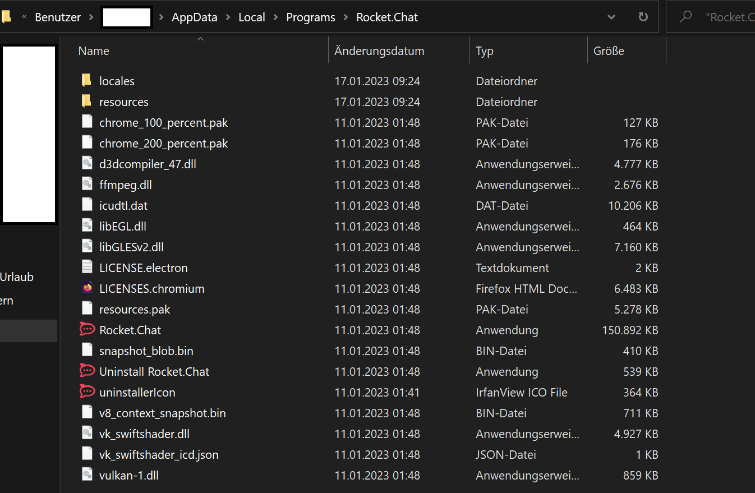
First you need to create a shortcut to the program file. To do this, locate the Rocket.Chat program on your computer, usually in the installation folder under <C:\Program Files\Rocket.Chat> or <C:\Program Files (x86)\Rocket.Chat.>. Right-click on the file <Rocket.Chat.exe> and select the option "Create shortcut" in the context menu. The shortcut will then appear in the same folder.
Now move this shortcut to the Windows Autostart folder , which contains all programs that start automatically when the PC boots up. To open the Autostart folder, press the Windows key + R on the keyboard at the same time to open the Run window. Enter <shell:startup> there and confirm with Enter. The Startup folder will open and you can simply drag the previously created Rocket.chat shortcut there.
After the shortcut has been placed in the startup folder, restart your PC to test whether Rocket.Chat now opens automatically when the computer is started.
Note: If the "AppData" folder is not visible, activate the option to show hidden files under "View" and "Hidden items".

If Rocket.Chat only displays a gray screen after deleting a channel, first right-click on the Uni Kassel server icon (red rocket at the top left). Then select "Reload Server" or "Reload Server" to update the server.
External users can gain access to Rocket.Chat. Please follow the instructions for creating external RocketChat accounts.
To switch off the sound for new messages, click on your profile icon and select "My account". Under "Settings" you will find the "Sound" section, where you can adjust the volume of the notification sound or set it to "Mute".
First make sure that the "automatic joining" option is activated in the parent team. Alternatively, users must be added manually via the member icon.
If you cannot add a collaborating person to a team, make sure that the person has already logged in to Rocket.Chat once.
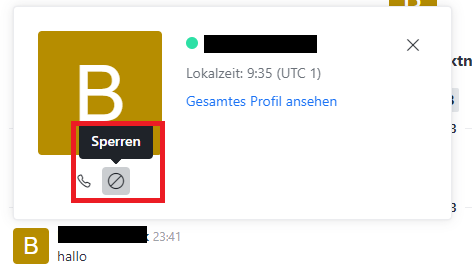
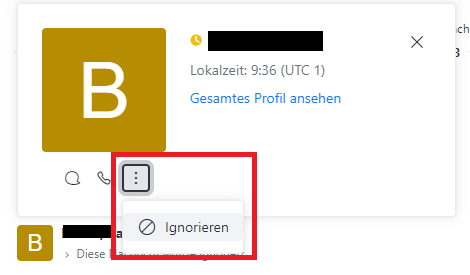
To block or ignore messages from certain people, please proceed as follows:
- Block direct messages: In the direct message history, click on the person's profile picture and select "Block". To unblock, click on the profile picture and select "Unblock".
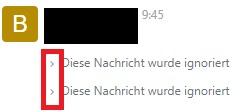
- Ignore messages in channel chats: Select "Ignore" in the person's profile. The messages will then appear as "This message has been ignored". You can show the message using the arrow. To unignore the message, select "Unignore".
If the old name is displayed in Rocket.Chat after a name change in IDM, log in to https://rocketchat.uni-kassel.de once via the browser. The display name should then be synchronized correctly.
Occasionally it can happen that messages in Rocket.Chat are not sent directly or that new discussions hang up. This problem can usually be solved quickly by reloading the page. To do this, simply press the key combination CTRL + R. After reloading, sending messages and creating new discussions should work again without any problems.
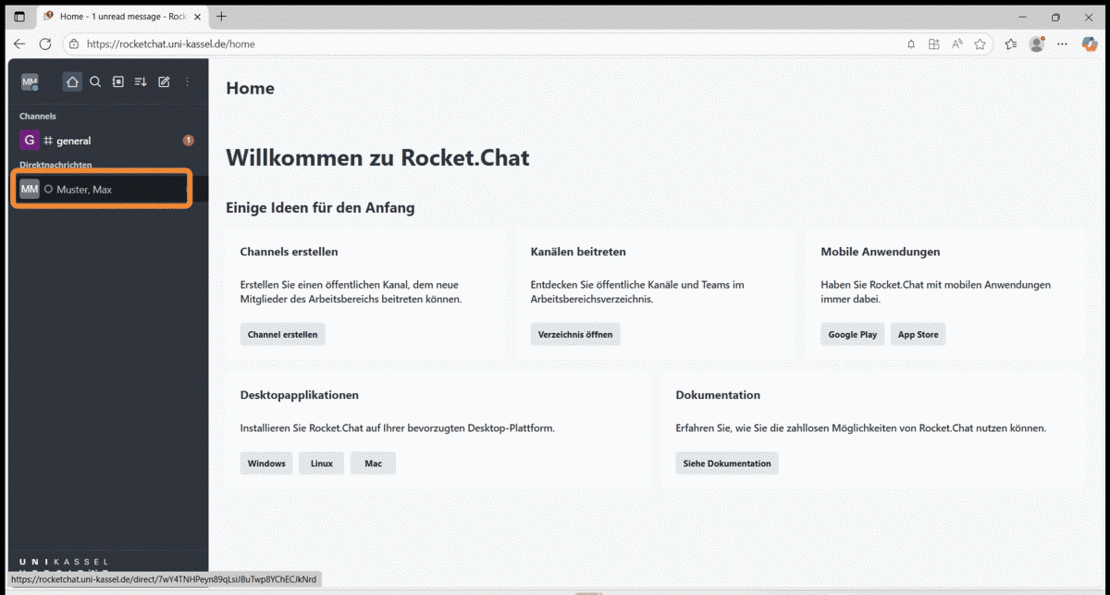
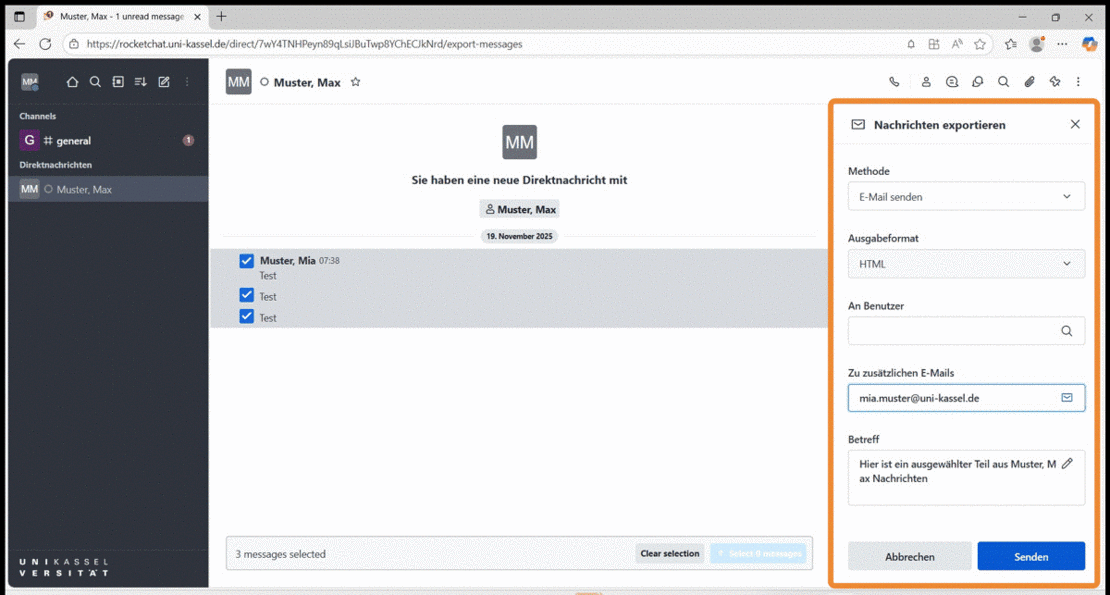
- Open Rocket.Chat and click on the relevant channel or discussion whose messages you want to export.
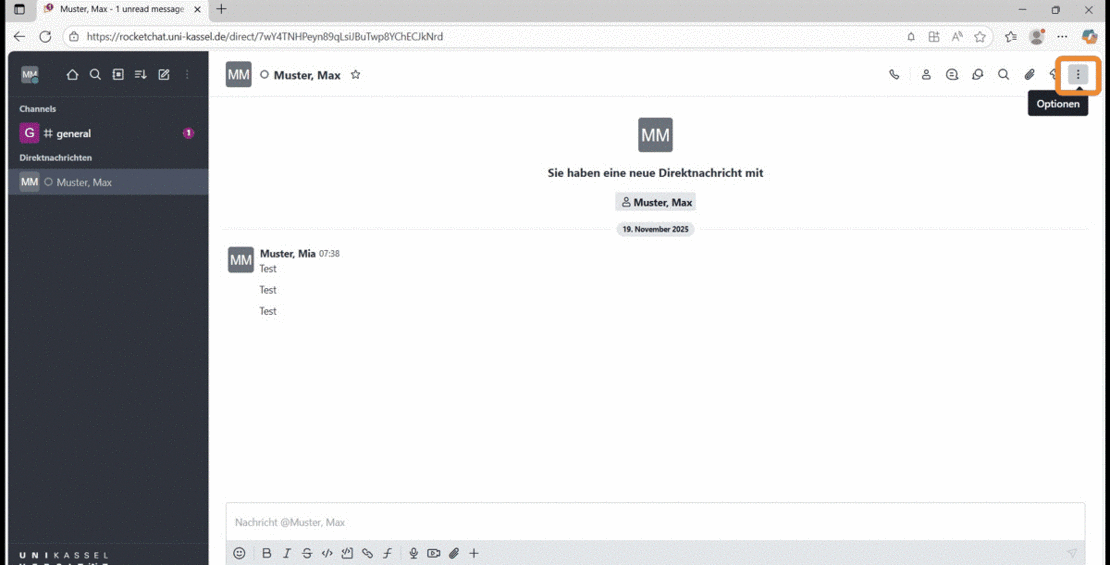
- Click on the 3 dots at the top right.
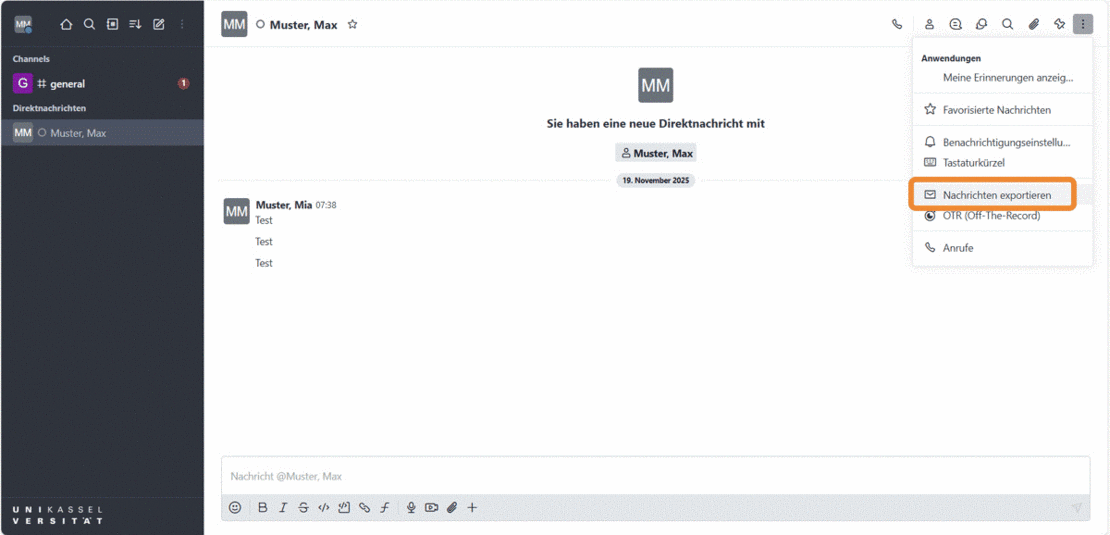
- Select "Export messages".
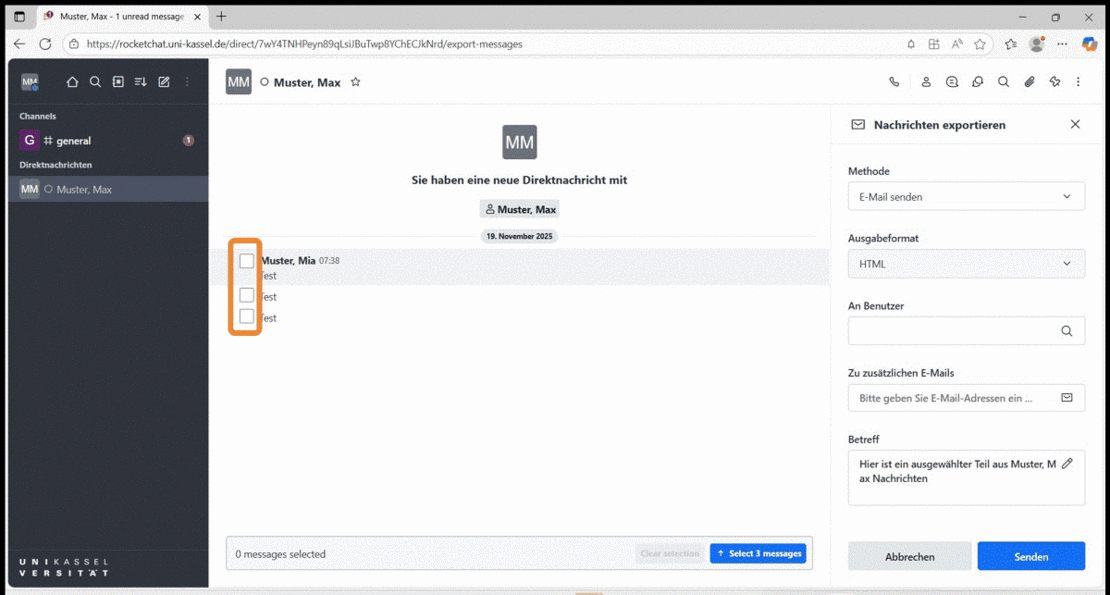
- Now select the relevant messages to be exported.
- Now select the method by which the emails are to be exported, for example "Send email".
The HTML output format is already preselected and cannot be changed.
If you would like to have the messages sent to you by email, enter the desired recipient address under "To additional emails".
You can then optionally enter a subject.
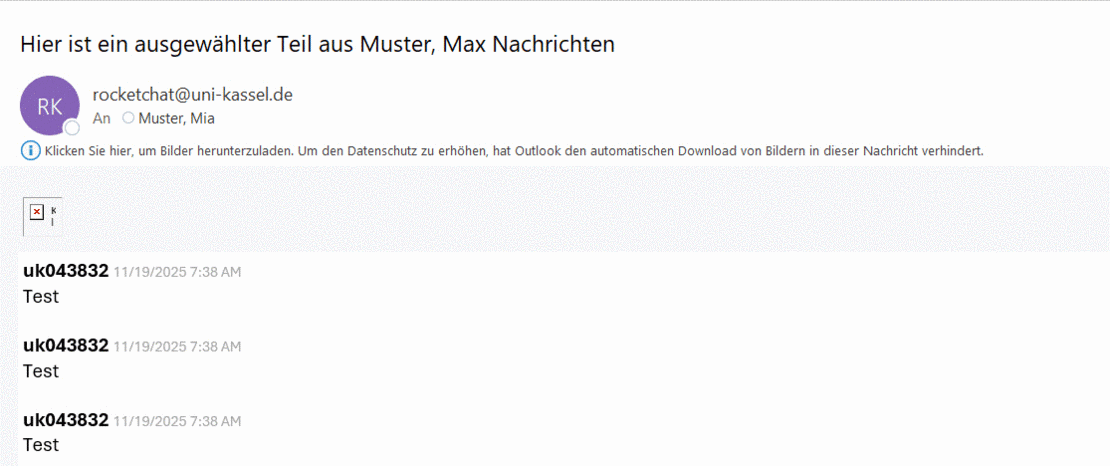
Finally, click on "Send". - You will then receive the exported messages as an e-mail.
Go-Link of this page: https://www.uni-kassel.de/go/rocketchat-faq