Configuration under macOS
Start "IBM Storage Protect Tools for Administrators", which is located in your Applications folder. A new dialog box will open. Select IBM-Spectrum Protect (you will be asked to enter your password for your local account).
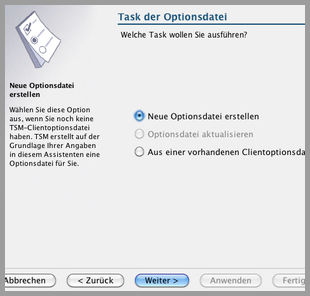
If you do not yet have a configuration file, the configuration wizard will open. Click on "Next" and in the following window "Create new option file" and "Next" again.
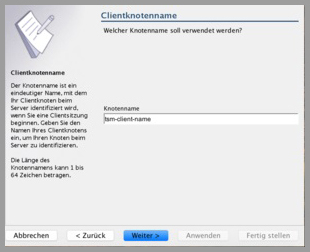
Now enter the node name of your computer. The wizard suggests the Netbios name of your computer. This should always be the node name that you received from the ITS on your user registration for the backup service.
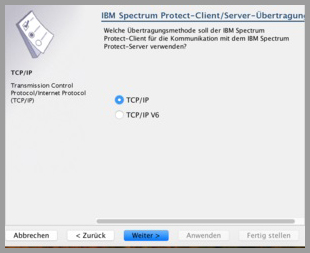
TCP/IP is usually already selected here as the transmission method. Click on "Next".
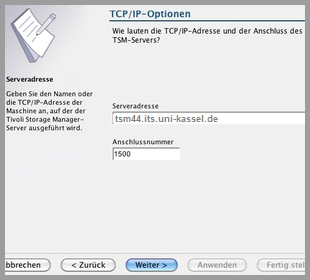
Now enter the address of the backup server:
tsm44.its.uni-kassel.de
The connection should say 1500.
Click on "Next".
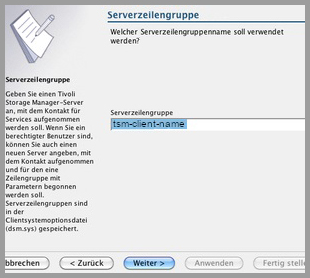
You can use the default suggestion as the server line group name.
Click on "Next".
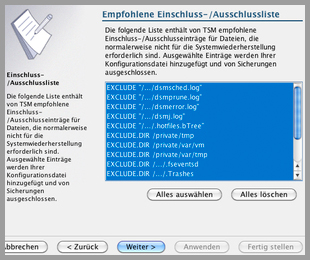
As a new user of the backup software, you should leave the recommended include/exclude list as it is and add more later if necessary. You can find out how to do this under Customizing the include/exclude options.
But first click on "Next".
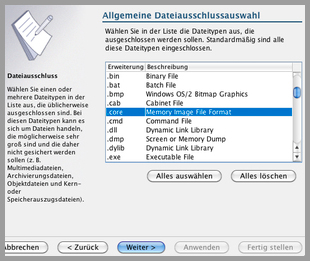
You will now see a selection of file types that you can exclude from the backup (e.g. all files with the extension .core). If you want to select more than one type, hold down the "cmd" key during the selection.
Click on "Log in" in the next window
The ISP or TSM client will now save the options file locally and ask you to enter your user data that you received when you registered for the backup service.
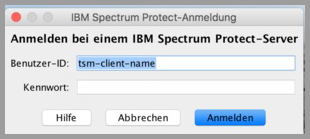
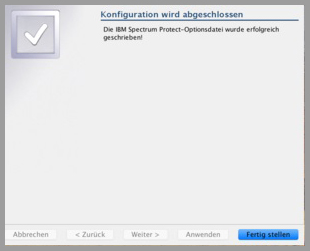
The configuration is completed by clicking on "Finish".