

Resource booking in Outlook (via Exchange)
Resources such as company vehicles, meeting rooms, seminar rooms or other shared objects can be managed and booked via our central mail server (Microsoft Exchange).
These resources have their own calendars and can be invited directly via Microsoft Outlook like an appointment or a meeting. The resource's calendar automatically checks availability and accepts bookings when time slots are free. Use our online form to request a resource.
Contents
Procedure for booking resources
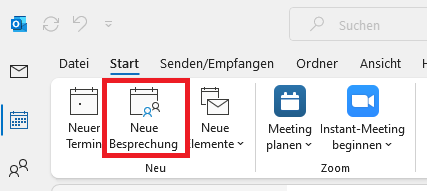
Open Outlook. Then create a meeting as usual by clicking on "New meeting".
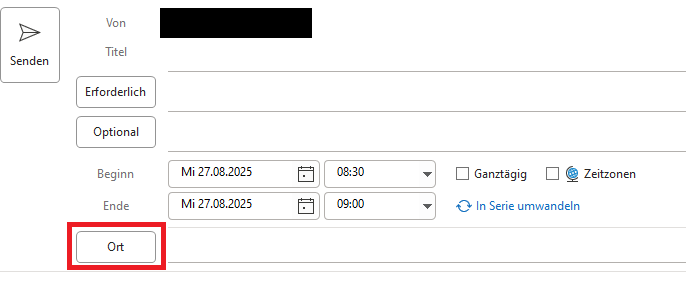
Then add the desired resource via "Location" or "Rooms".
Then check the desired time slot and any additional participants.
Finally, send the appointment request to make the booking binding.
The resource will be booked automatically if it is available - otherwise you will receive a rejection.
Resource - Integrate calendar in Outlook
The calendar of a resource can be permanently integrated into Outlook in order to keep a better eye on availability or to enter appointments directly.
Please note that you need the appropriate editor rights for this. If these were not requested when you applied for the resource, you can apply for the authorization later via a ticket. Be sure to enter the exact name of the resource.
Note:
If you enter an appointment directly in the resource calendar, there is no automatic check for overlaps. Please make sure that the desired period is free to avoid double bookings.
- First click on "Open calendar" in the calendar view and select "From room list...".
- Then search for the name of the desired resource in the address book.
- Select the resource and then confirm with "OK". The calendar now appears in your calendar overview.
Go-Link of this page: https://www.uni-kassel.de/go/ressourcenbuchung-outlook